Caution:

Make sure that the power is off before installing or uninstalling
Ensure all wires are securely fastened to the correct terminals
Ensure the Wi-Fi (2.4GHz) signal is steady and normally working before adding device in App
If you don't have any electrical wiring experience, please call a qualified electrician to install the switch.

Product informations:

Wireless Communication: Wi-Fi IEEE 802.11b/g/n 2.4Ghz
Input Power: AC 95-250V/56-60Hz
Max. Load: 300W
Material: Tempered Glass & ABS Plastic
Working Temperature: -20 - 60°C
Compatible OS: Android 4.4/iOS 9.0 or Higher

Installation of Smart Dimmer Switch:

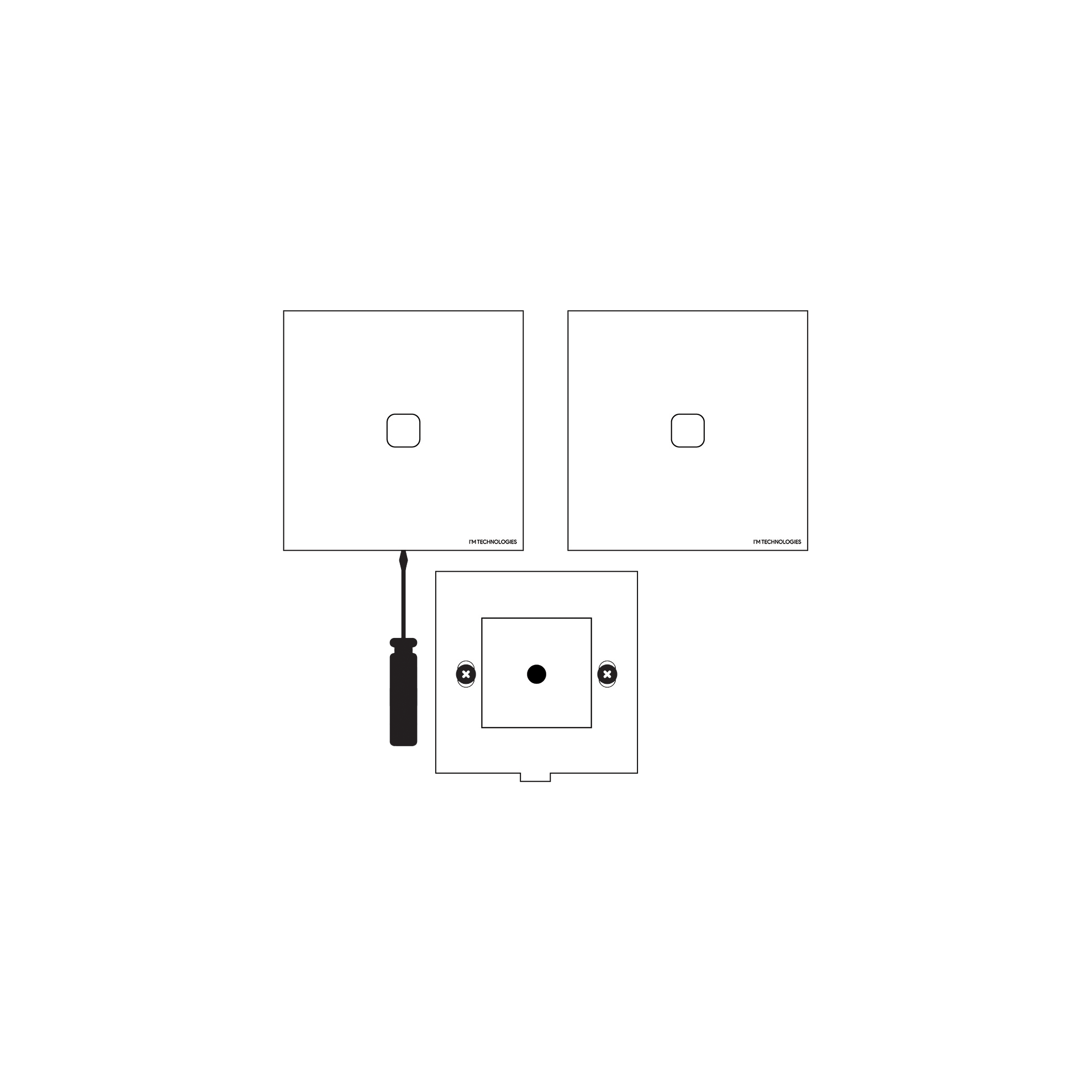
- Carefully open the glass panel with the help of a screwdriver into the flame hole. (Be careful not to scratch the device)
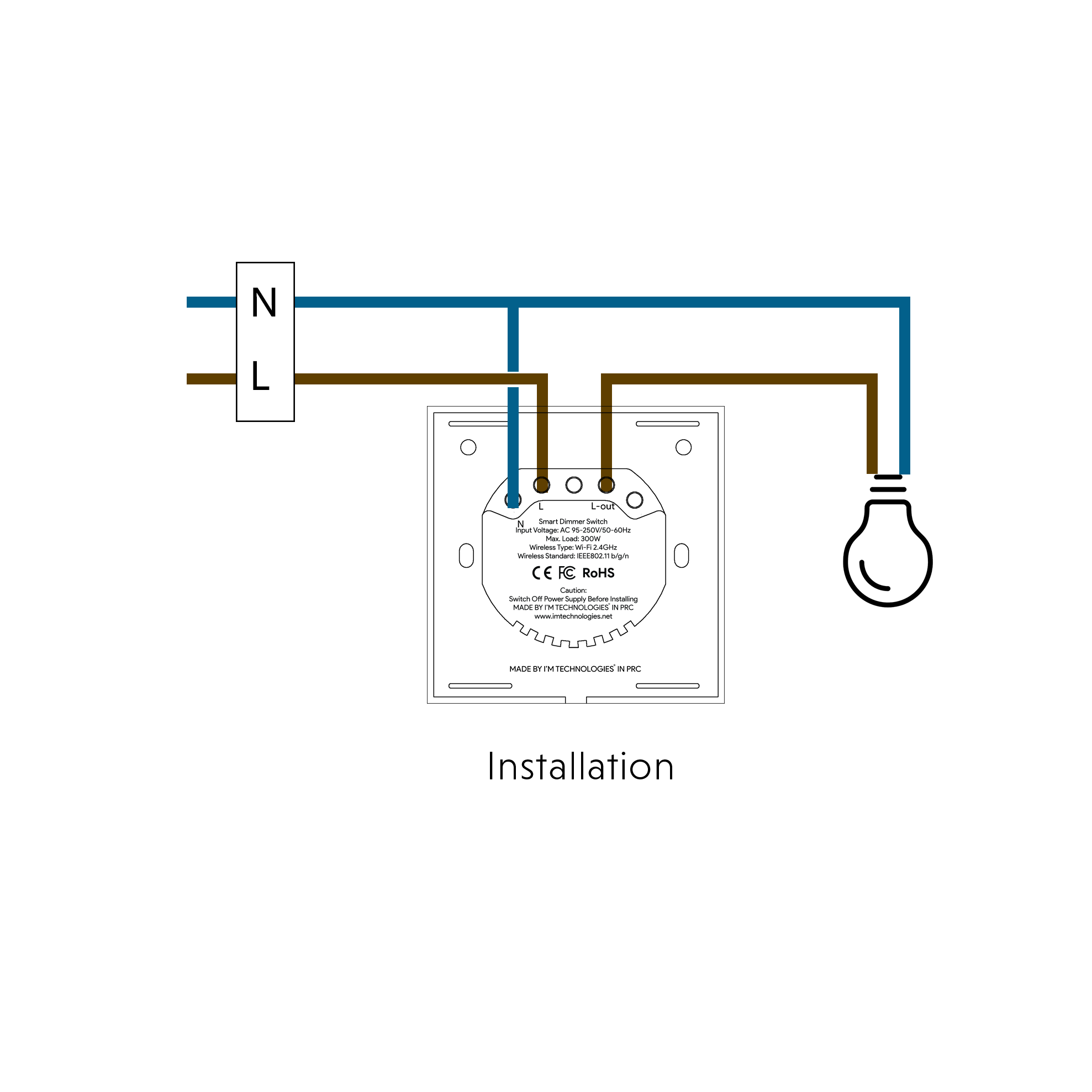
- Connect the wiring as wiring diagram below.
- Fix the back plate on the wall with screws.
- Push back the touch panel into place.
- Turn power supply back on after finishing the installation process and the device will automatically enter the pairing mode
If you already downloaded Tuya App launch it, if not download it and follow the steps below:

Download & Install the App on your phone:

On your phone click here or search for "Tuya Smart" on Google Play Store or Apple App Store.
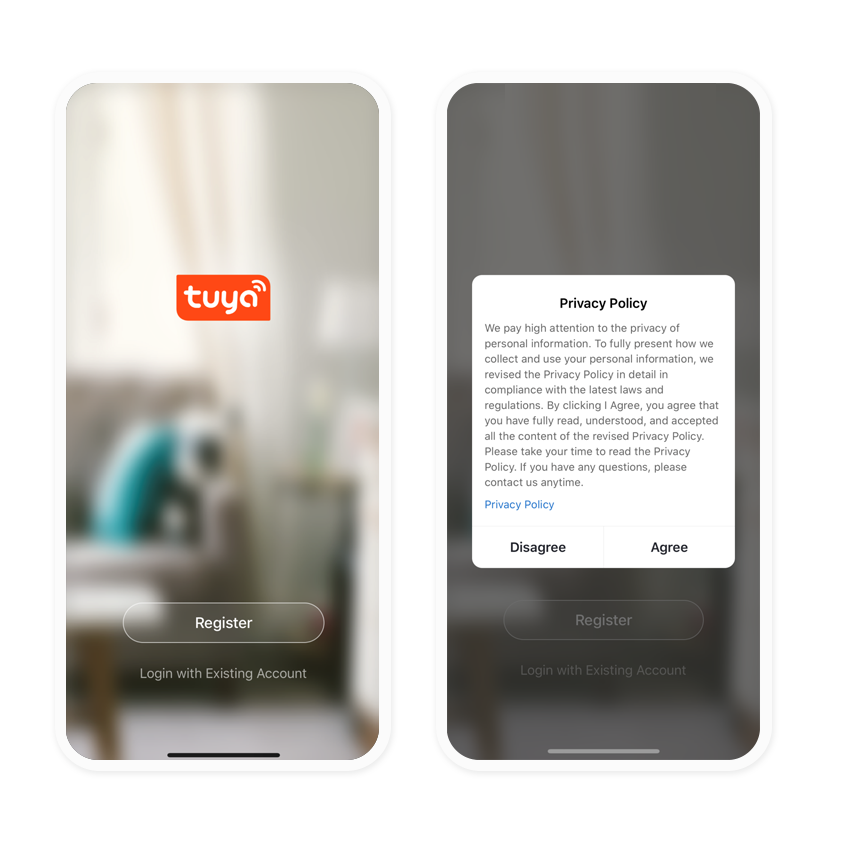
- Input account name and password to login. If you don't have an account please click on register and create one.
- Follow the steps and finish your registration.

Add New Device:

There are two types of pairing mode: (make sure your Bluetooth and Wi-Fi is on)
The first method:
- The Switch will automatically enter the pairing mode each time powered on. (LED Will Blink Rapidly)
- Click on "Add Device" on Tuya App. It will automatically find your device.
- Click on the discovered device and it will automatically be paired. (Make sure you are connected to the same WiFi)
If your Device is not in pairing mode (LED not Blinking)

Try the second method:
- Touch and Hold a random button on the switch around 5-10 seconds and the LED will start blinking rapidly.
- Connect your phone to your local Wi-Fi.
- Enable bluetooth on your phone.
- Tap "+" icon on the App to add new device, the app will automatically discover all devices that are standby on pairing mode.
- Follow the app tips to fix the wifi network name and password till new device is registered successfully.
Note: The device uses Wi-Fi 2.4GHz only and does not use Wi-Fi 5Ghz.

Third-Party Voice Control:

How to Link/Bind Tuya Smart Account to Google Assistant / Alexa App?
Click on profile "Me" on Tuya Smart App > Third-Party Voice Services > Select the voice service you want to use and follow the steps.

Siri Voice Control:

You can speak to Siri by voice commands. To enable this scenario (Tap-To-Run) to control the switch. System Requirement: iOS 12.0 or Higher
- Open Tuya Smart App after Switch is added > Click on Smart Scene "Smart" on the bottom > Click on lauch Tap-To-Run > Click on Run the Device > Choose your device > Select Function and then tap "Next" > Click on "Save" > Then Click on "Add to Siri"
- Next input a custom phrase and tap "Add to Siri", then setup is done. Everytime when you say the custom phrase to Siri, Siri will command Tuya Smart App to run this shortcut to control the switch.

Having installation issues?

Get immediate support with I'M AI, our AI Chat Support.