
Make sure that the power is off before installing or uninstalling
Ensure all wires are securely fastened to the correct terminals
Ensure the Wi-Fi (2.4GHz) signal is steady and normally working before adding device in App
If you don't have any electrical wiring experience, please call a qualified electrician to install the switch.

| Wireless Communication: | Wi-Fi IEEE 802.11b/g/n 2.4Ghz |
| Input Power: | DC3V LR03 |
| Quiescent Current: | ≤45uA |
| Alarm Current: | ≤130mA |
| Low Power Undervoltage: | ≤2.4V |
| Magnetic Control Distance: | ≥15mm |
| Working Humidity: | Max. 95% RH |
| Working Temperature: | -10°C to 60°C |
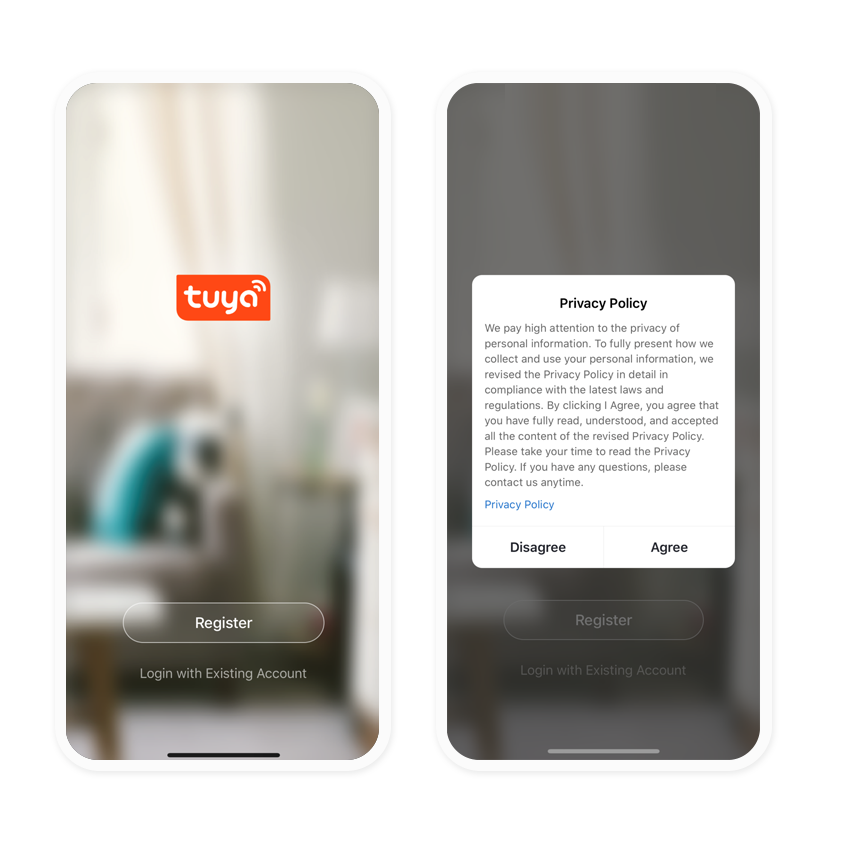
On your phone click here or search
for "Tuya Smart" on Google Play Store or Apple App Store.
- Input account name and password to login. If you don't
have an account please click on register and create one.
- Follow the steps and finish your registration.
How to install?
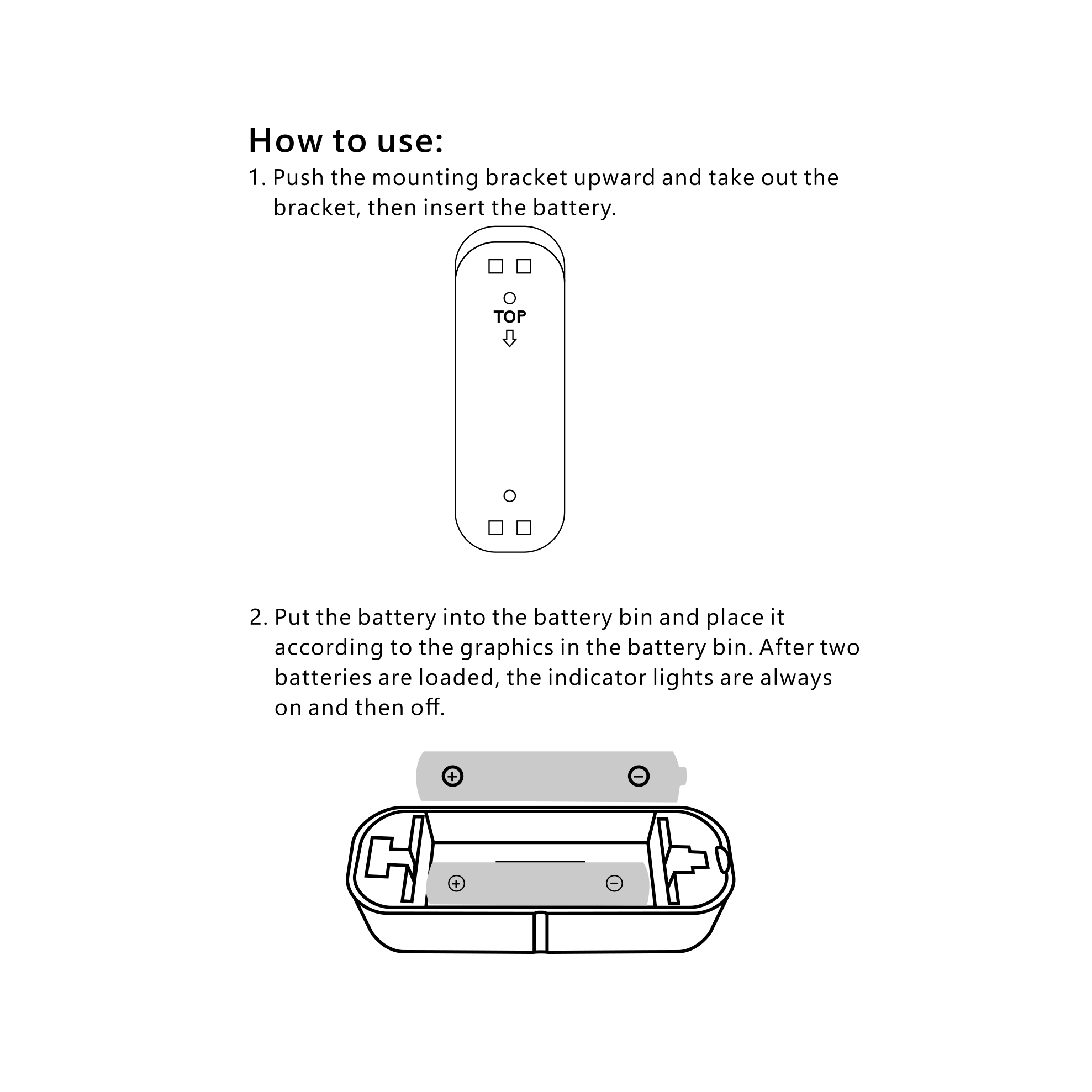
Step 1: Install the batteries:
-Push the mounting bracket upward and take off the bracket.
-Insert the AAA batteries into the battery compartment, making sure they are oriented correctly.
-Close the battery compartment and place the bracket back on the sensor.
Step 2: Attach the sensor and magnet:
- Peel off the adhesive backing on the sensor and magnet.
- Attach the sensor to the door or window frame, and the magnet** to the door or window itself. Make sure the sensor and magnet are aligned so that they can detect each other when the door or window is opened or closed.
Step 3: Test the sensor
- Open and close the door or window to test the sensor.
- The indicator light on the sensor should flash when the door or window is opened, and it should remain off when the door or window is closed.
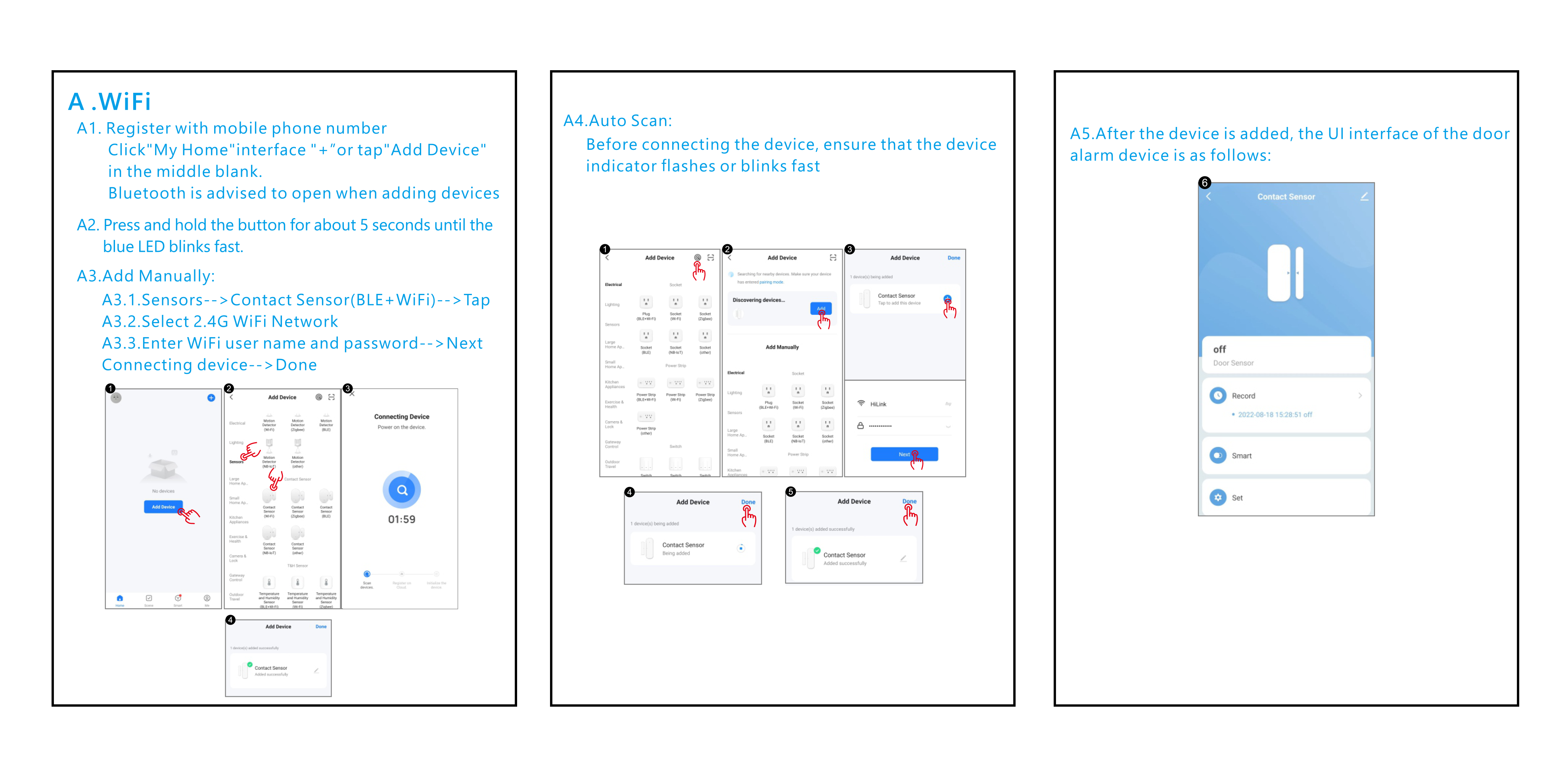
If you already downloaded Tuya App launch it, if not download it and follow the steps below:
First Step:
Step 1: Click "My Home" interface "+" or tap "Add Device" in the middle blank.
Step 2: Press and hold the button for about 5 seconds until the blue LED blinks fast.
Second Step:
Step 1: Select Sensors > Contact Sensor(BLE+WiFi) > Tap to select.
Step 2: Make sure your Phone is connected to a 2.4G WiFi Network.
Step 3: Enter WiFi user name and password > Press Next.
Step 4: Connecting device > Press Done.
How to Link/Bind Tuya Smart Account to Google Assistant / Alexa App?
Click on profile "Me" on Tuya Smart App > Third-Party Voice Services > Select the voice service you want to use and follow the steps.
You can speak to Siri by voice commands. To enable this scenario (Tap-To-Run) to control the switch. System Requirement: iOS 12.0 or Higher
- Open Tuya Smart App after Switch is added > Click on Smart Scene "Smart" on the bottom > Click on lauch Tap-To-Run > Click on Run the Device >
Choose your device > Select Function and then tap "Next" > Click on "Save" > Then Click on "Add to Siri"
- Next input a custom phrase and tap "Add to Siri", then setup is done. Everytime when you say the custom phrase to Siri, Siri will command Tuya Smart App to run this shortcut to control the switch.
Get immediate support with I'M AI, our AI Chat Support.