Caution:

This product is for indoor use only. Do not use in humid environment or outdoor.
This product is not a toy, please keep children away from this device.
Turn off the power before cleaning the product. Do not use liquids, spray cleaners or wet cloths for cleaning.
Keep away from water and heat sources while using to avoid damage to products and potential safety hazards.

Product informations:

Wireless Communication: Wi-Fi IEEE 802.11b/g/n 2.4GHz
Input Voltage: DC5V/1A
Radio Frequency: 433/315MHz (affected by the environment)
Infrared Range: ≤10M (affected by the environment)
Infrared Frequency: 38KHz
Working Temperature: -10 - 60°C
Working Humidity: ≤85% RH

Download & Install the App on your phone:

On your phone click here or search for "Tuya Smart" on Google Play Store or Apple App Store.
- Input account name and password to login. If you don't have an account please click on register and create one.
- Follow the steps and finish your registration.

Installation of Smart IR & RF Remote Controller:

1st Method:
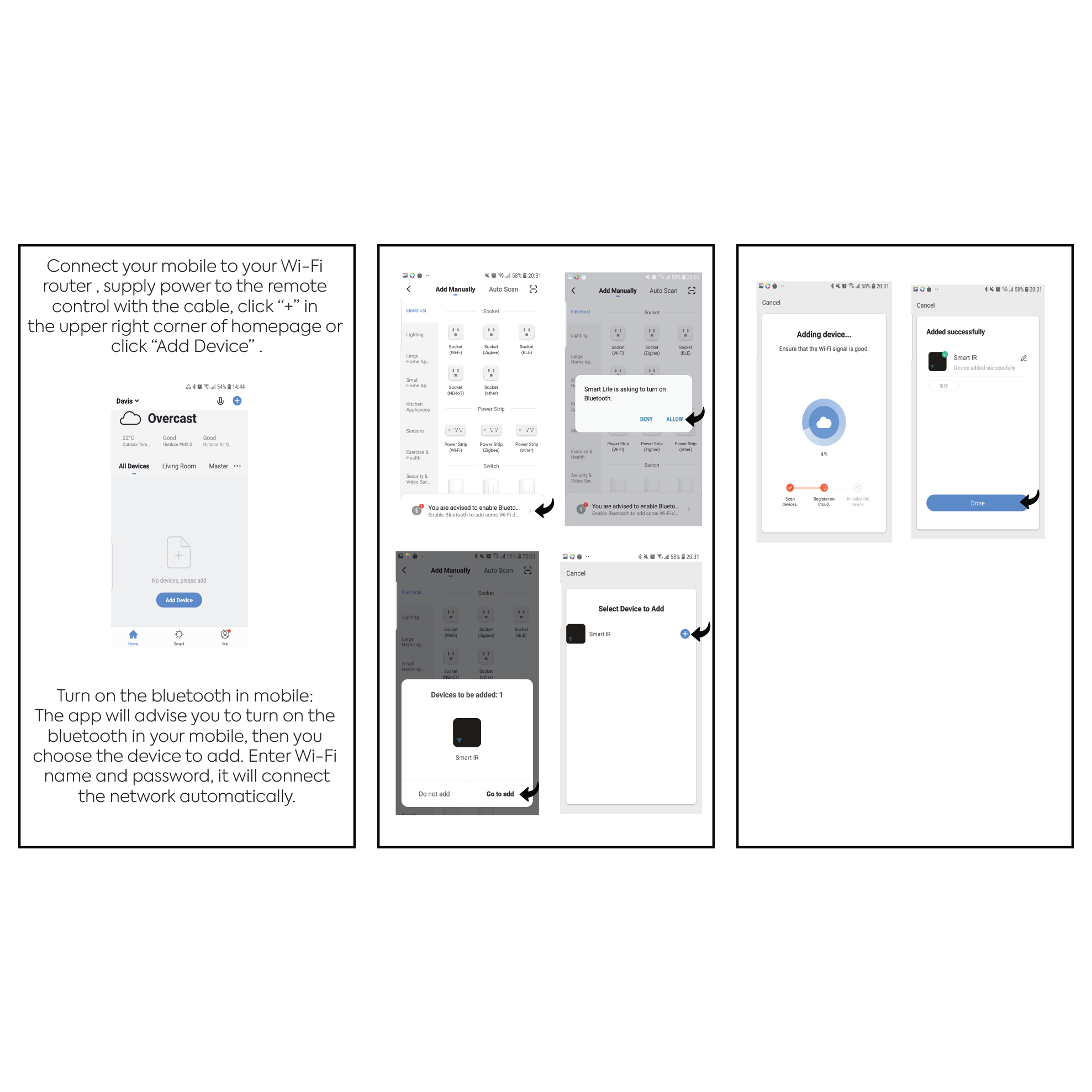
Step 1: Connect your mobile to your Wi-Fi router.
Step 2: Supply power to the remote control with the cable.
Step 3: Click "+" in the upper right corner of the homepage or click "Add Device".
Step 4: The app will advise you to turn on the Bluetooth in your mobile.
Step 5: Choose the device to add and enter the Wi-Fi name and password.
Step 6: The app will connect the network automatically.
2nd Method:
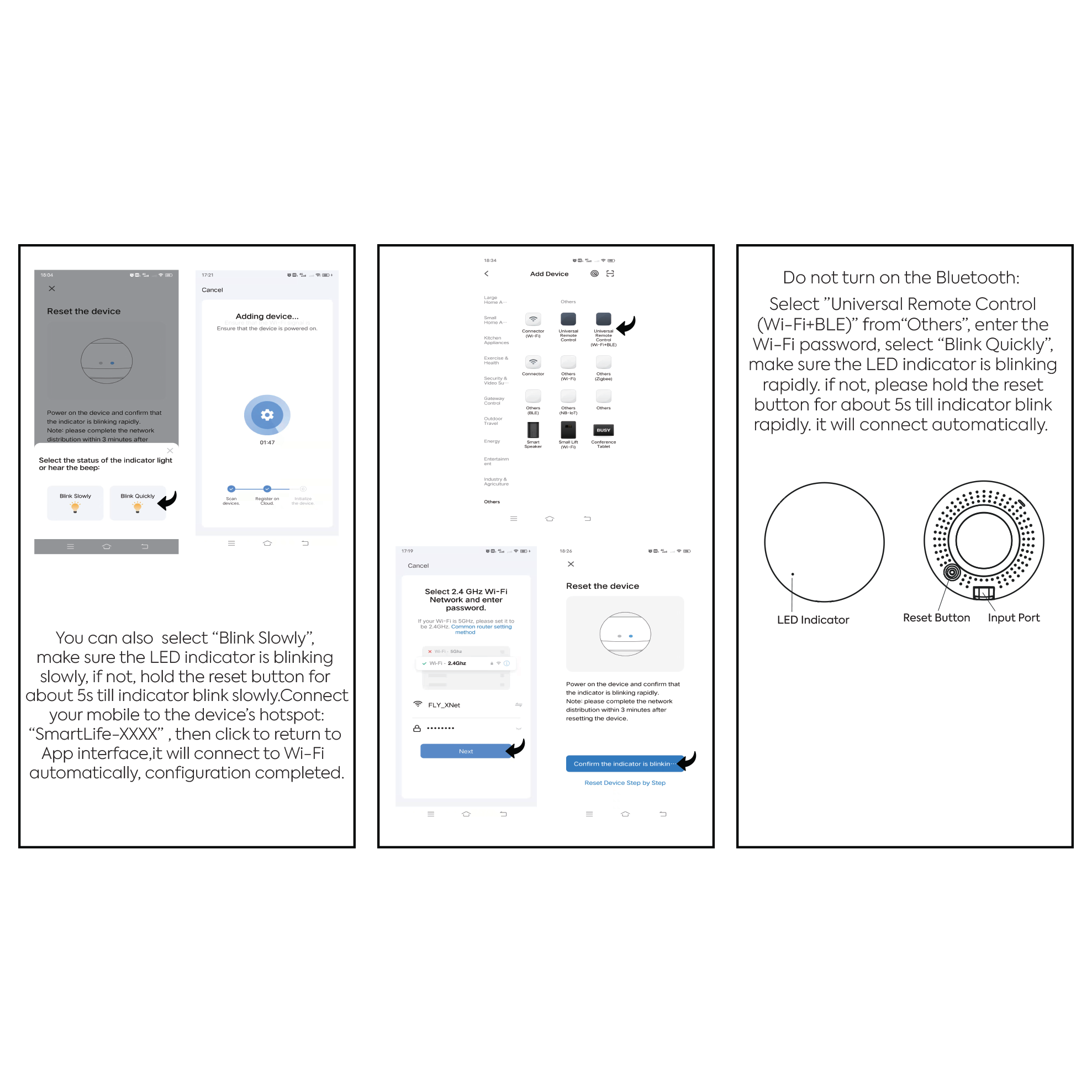
Step 1: If the LED indicator is blinking rapidly, select "Blink Quickly". If the LED indicator is blinking slowly, select "Blink Slowly".
Step 2: If you select "Blink Quickly", make sure the LED indicator is blinking rapidly. If it is not, hold the reset button for about 5 seconds until the indicator blinks rapidly.
Step 3: If you select "Blink Slowly", make sure the LED indicator is blinking slowly. If it is not, hold the reset button for about 5 seconds until the indicator blinks slowly.
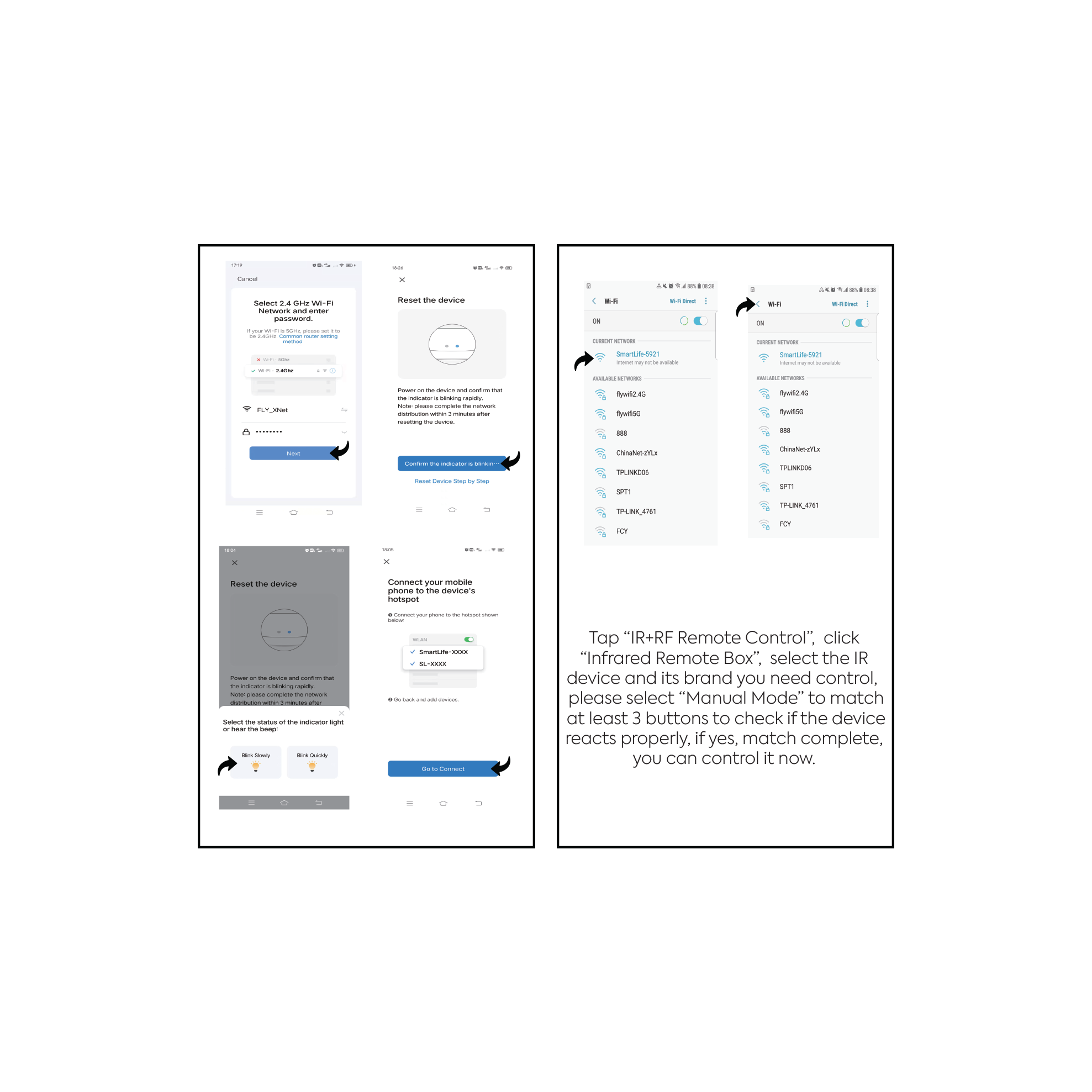
Step 4: Connect your mobile device to the device's hotspot: "SmartLife-XXXX".
Step 5: Once your mobile device is connected to the device's hotspot, return to the app interface. The app will connect to Wi-Fi automatically.
Step 6: Once the configuration is complete, you can start using the remote control.

How to add your Remote:

Step 1: Tap the "+" button in the upper right corner of the app and select "IR+RF Remote Control".
Step 2: Select "Infrared Remote Box".
Step 3: Select the type of device you want to control and its brand.
Step 4: Select "Manual Mode" and match at least three buttons to check if the device reacts properly. If yes, the match is complete and you can control your device now.

Troubleshooting:
If the app cannot find your device, make sure that the device is turned on and that it is within range of your mobile device.
If the app cannot control your device, try matching more buttons or try using a different remote control mode

Third-Party Voice Control:

How to Link/Bind Tuya Smart Account to Google Assistant / Alexa App?
Click on profile "Me" on Tuya Smart App > Third-Party Voice Services > Select the voice service you want to use and follow the steps.

Siri Voice Control:

You can speak to Siri by voice commands. To enable this scenario (Tap-To-Run) to control the switch. System Requirement: iOS 12.0 or Higher
- Open Tuya Smart App after Switch is added > Click on Smart Scene "Smart" on the bottom > Click on lauch Tap-To-Run > Click on Run the Device > Choose your device > Select Function and then tap "Next" > Click on "Save" > Then Click on "Add to Siri"
- Next input a custom phrase and tap "Add to Siri", then setup is done. Everytime when you say the custom phrase to Siri, Siri will command Tuya Smart App to run this shortcut to control the switch.

Having installation issues?

Get immediate support with I'M AI, our AI Chat Support.